Step 3 of 6 · about 4 minutes · Booking unlocker

Connect your calendar, so leads can actually book you.

Three connections inside your CRM: your calendar, your video-call tool, and the phone app that tells you a lead came in. Until these are done, your booking page can take bookings but nobody gets a meeting link and nobody gets told. This is the step that makes the pipeline real.

Do these three things

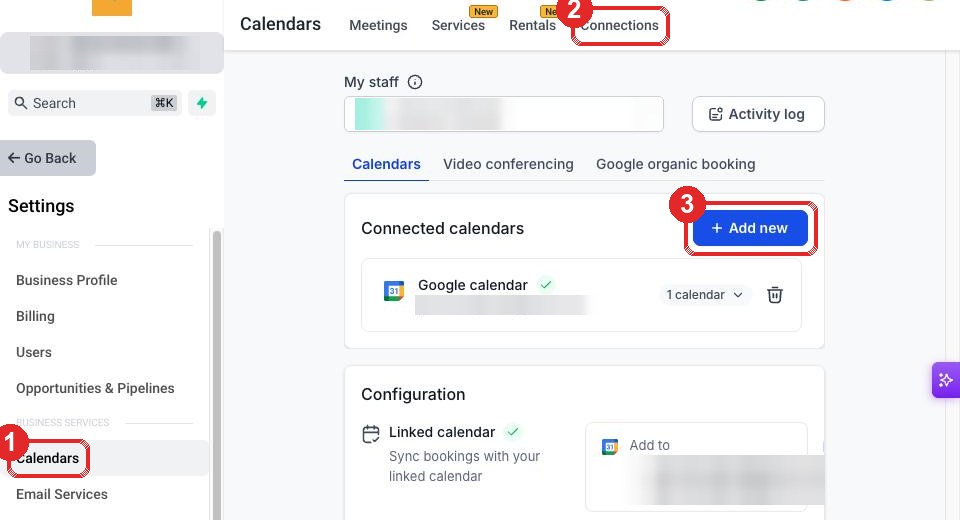
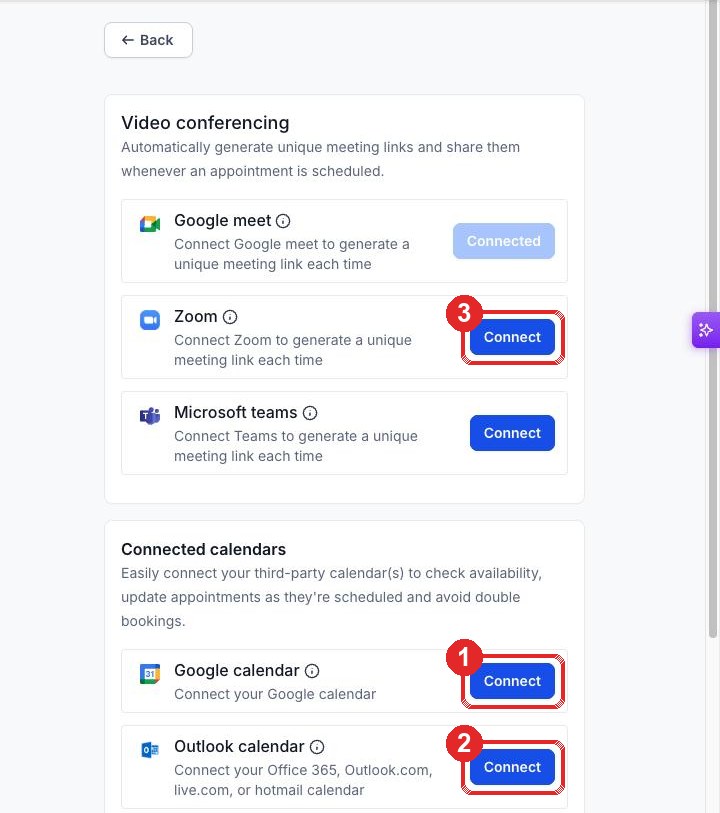
1. Connect your calendar

This is what stops the system double-booking you. Once connected, your existing meetings block out automatically and leads only ever see slots you are genuinely free for.

2. Connect your video-call tool

Same screen, second connection. This is the one people miss, and it is the one that quietly breaks bookings.

Why this one matters more than it looks

Connecting your calendar and connecting your video tool are two separate approvals. It is very common to do the first and assume the second came with it. If only the calendar is connected, bookings still land in your diary but the invite goes out with no joining link, and you find out when a lead is sitting there waiting for you. Check both say connected before you move on.

3. Install the app and allow notifications

When a lead comes in you get an email and a push notification. The push is the one that reaches you when you are away from your desk, and it only works if the app is installed with notifications allowed.

How to know it worked

Tell us when all three are done and we will send a test booking through end to end, so you see the invite and the joining link land before any real lead does.

Common questions on this step

I connected Outlook. Do I still need to connect Teams separately?

Yes. They are two different approvals even though they are the same Microsoft account. The calendar connection handles availability and writing the meeting into your diary. The Teams connection is what generates the joining link. Connect both.

Will this let you see my personal appointments?

No. The connection reads whether a slot is busy or free, not what the meeting is or who it is with. Your calendar contents stay private. We use it purely to avoid offering a lead a time when you are already booked.

What hours will leads be able to book?

We set a sensible default of weekday working hours. Tell us the hours you actually want to take calls and we will change it, including blocking specific days. It is a one-line change on our side, so ask rather than working around it.

I would rather take these calls by phone than video.

Fine, and for some audiences it converts better. Tell us and we will switch the booking to a phone call, which means the lead gives their number and you ring them at the slot. You can skip the video-call connection entirely if you go this route.

A booking came through but the lead got no invite and no joining link.

Three things have to be true and it is nearly always the second or third that is missing. Your calendar provider is connected. You are attached to the booking calendar as a team member, so there is a diary to write to. And the meeting location is set to Teams, Meet or Zoom, so a join link gets generated.

Tell us and we check all three in a couple of minutes, then push a test booking end to end so you watch the invite and the link land before a real lead does.

I want bookings on a shared mailbox like sales@ or info@, but it will not connect.

Shared mailboxes on Microsoft 365 have no licence and no interactive sign-in, so the connection either fails or the mailbox never appears in the list. That is a Microsoft rule, not a setting we can toggle.

Connect a licensed named user who holds Full Access to the shared mailbox instead, then set the shared calendar as the one bookings are written to. Same end result. Tell us which mailbox you want bookings on and we will tell you which user to connect.

Can more than one person take the calls?

Yes. We can put two or more people on the same booking calendar and rotate the bookings between them, or route by availability. Tell us who, and each person connects their own calendar the same way.

Will I get a text message when a lead comes in?

No, and we would rather be straight with you about why. Maltese mobile numbers cannot be issued on the carrier network the CRM sends SMS through, so SMS to a +356 mobile is not something we can make reliable. This is not a setting we can switch on and it is not worth holding your launch for.

Your alerts come by email plus a push notification from the LeadConnector app, which arrive instantly and cost nothing. If you add WhatsApp Business later, lead alerts can ride on that too.

Using WhatsApp with your customers? That is an optional add-on rather than a launch step. See the WhatsApp Business guide whenever you are ready. More answers in the full FAQ.