

Access · Google
Google access.
Two minutes each. Do only the ones you use.
Google Analytics
Google Tag Manager
Search Console
Google Ads
Merchant Center (online shops only)
Google Business Profile
Google Analytics
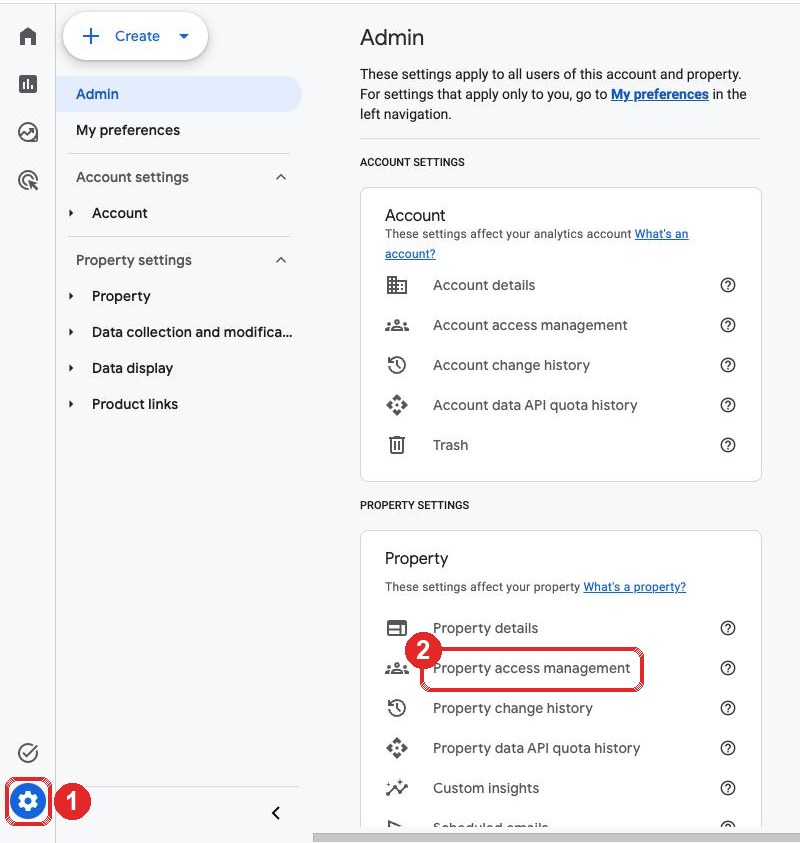
1Open Admin
- The gear (bottom left)
- Property access management
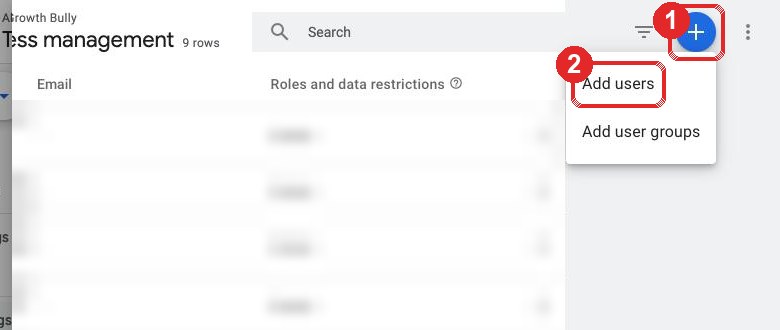
2Add a user
- The blue +
- Add users
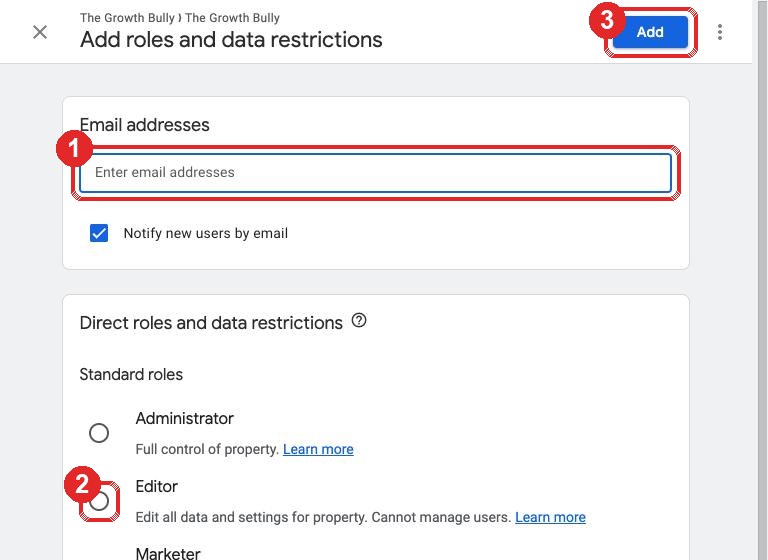
3Add us
stephen@thegrowthbully.com
- Paste our email
- Choose Editor
- Click Add
Google Tag Manager
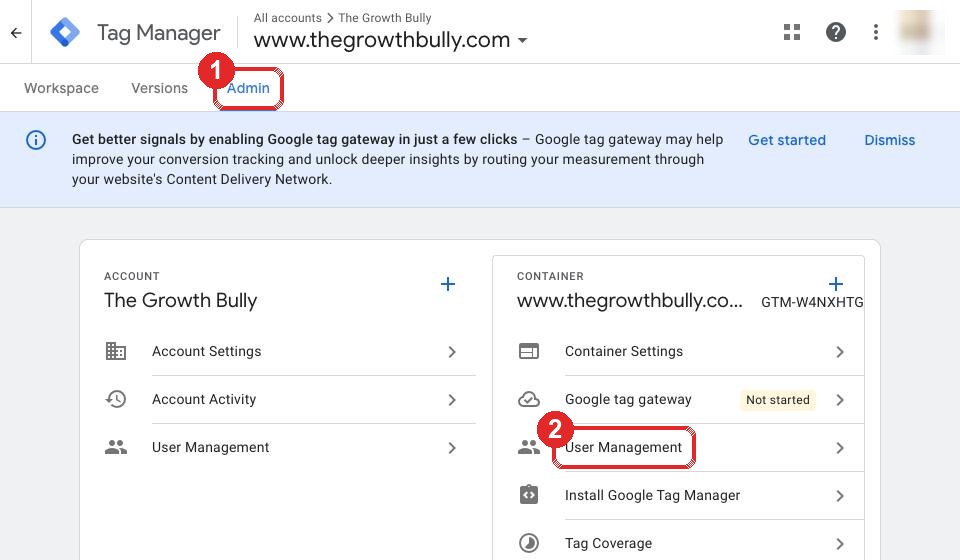
1Open Admin
- Admin (top)
- User Management (under Container)
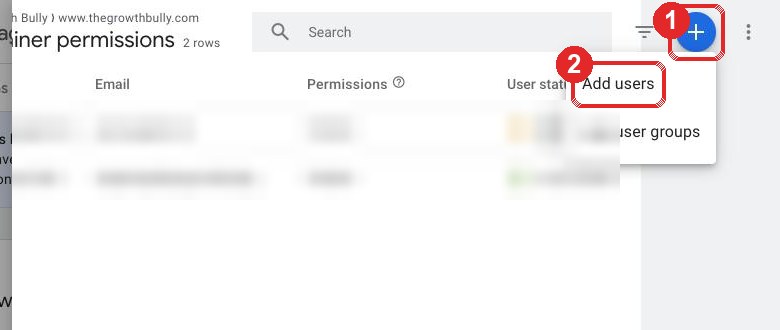
2Add a user
- The blue +
- Add users
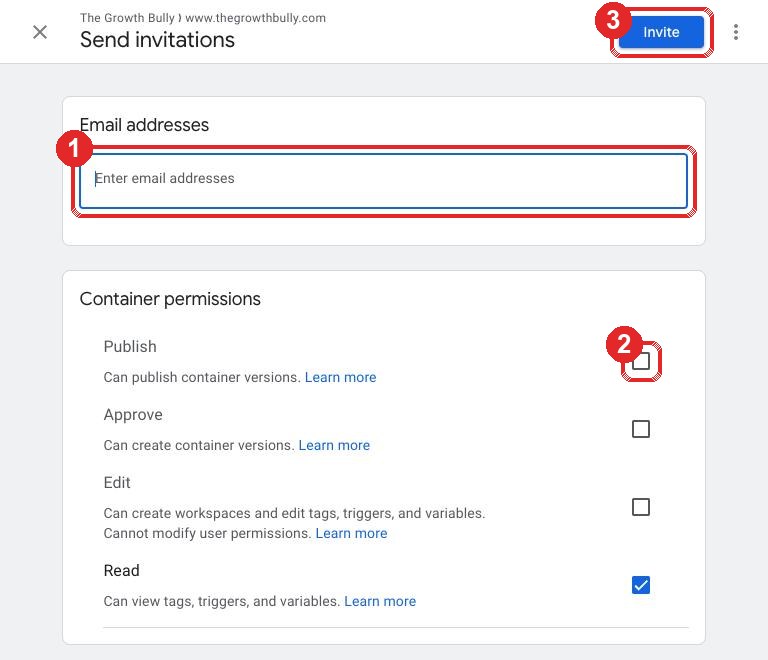
3Add us
stephen@thegrowthbully.com
- Paste our email
- Tick Publish
- Click Invite
Search Console
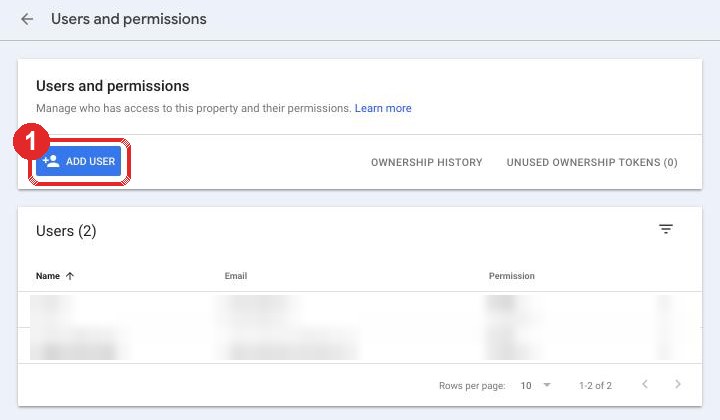
1Open users
- Add user
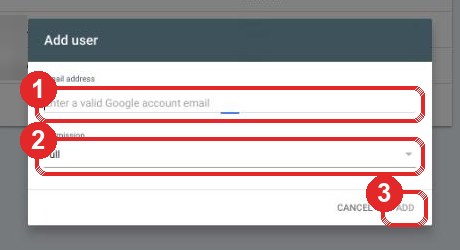
2Add us
stephen@thegrowthbully.com
- Paste our email
- Leave it on Full
- Click Add
Google Ads
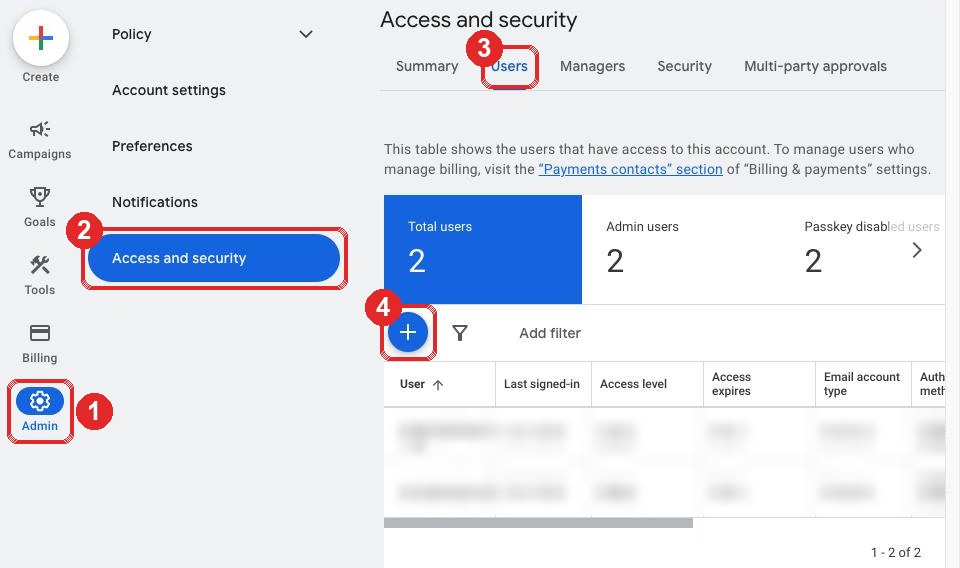
1Open users
- Admin (left)
- Access and security
- Users
- The blue +
2Add us
stephen@thegrowthbully.com
- Paste our email
- Choose Admin
- Click Send invitation
Reply with your customer ID: the 123-456-7890 number, top right.
Google emailed you our link request? Click Accept.
Merchant Center (online shops only)
- Open merchants.google.com
- The gear (top right), then Account access
- Add user, paste our email, choose Standard, Add user
stephen@thegrowthbully.com
Google Business Profile
1Find your profile
- Log in to the Google account that manages it
- Search Google for your business name
2Add us
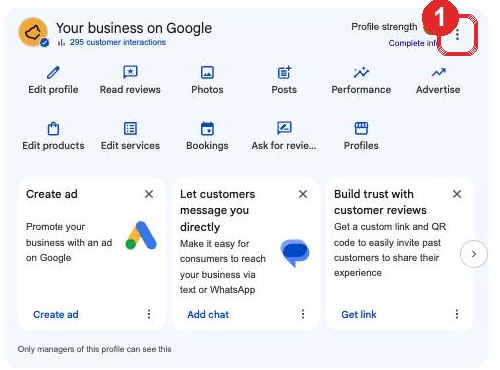
- The three dots on "Your business on Google"
- Business Profile settings, then Managers
- Add, paste our email, choose Manager, Invite
stephen@thegrowthbully.com
Tick off what you have done
Email this checklist to yourself
Ticks are saved in this browser only, so you can come back and see what is left. Skip any line that does not apply to you.
Stuck? Reply STUCK to our email with a screenshot.